Learn how to use OpenAI Codex directly from Pinegrow.
By default, Pinegrow runs Codex with permissions to execute commands and edit files without asking for confirmation. Always use it with source control such as Git.
Watch a video overview
Are you using Claude Code? Read these instructions instead.
Benefits
There are three major benefits of using Codex:
- Agents are smarter and can do more than just API calls to AI providers.
- You can use Codex without paying extra if you already have a ChatGPT subscription
- And now with Pinegrow, you get to work with Codex visually.
Install Codex CLI
Follow the official Codex documentation to install Codex CLI on your computer.
Right now Codex isn’t supported on Windows. You can try running it in WSL, but you’d also have to run Pinegrow in WSL to get this integration working. (We haven’t tested that setup, and we don’t offer support for that scenario.)
Add Codex provider in Pinegrow
In AI Assistant panel, open Settings and click on the OpenAI Codex Provider settings:
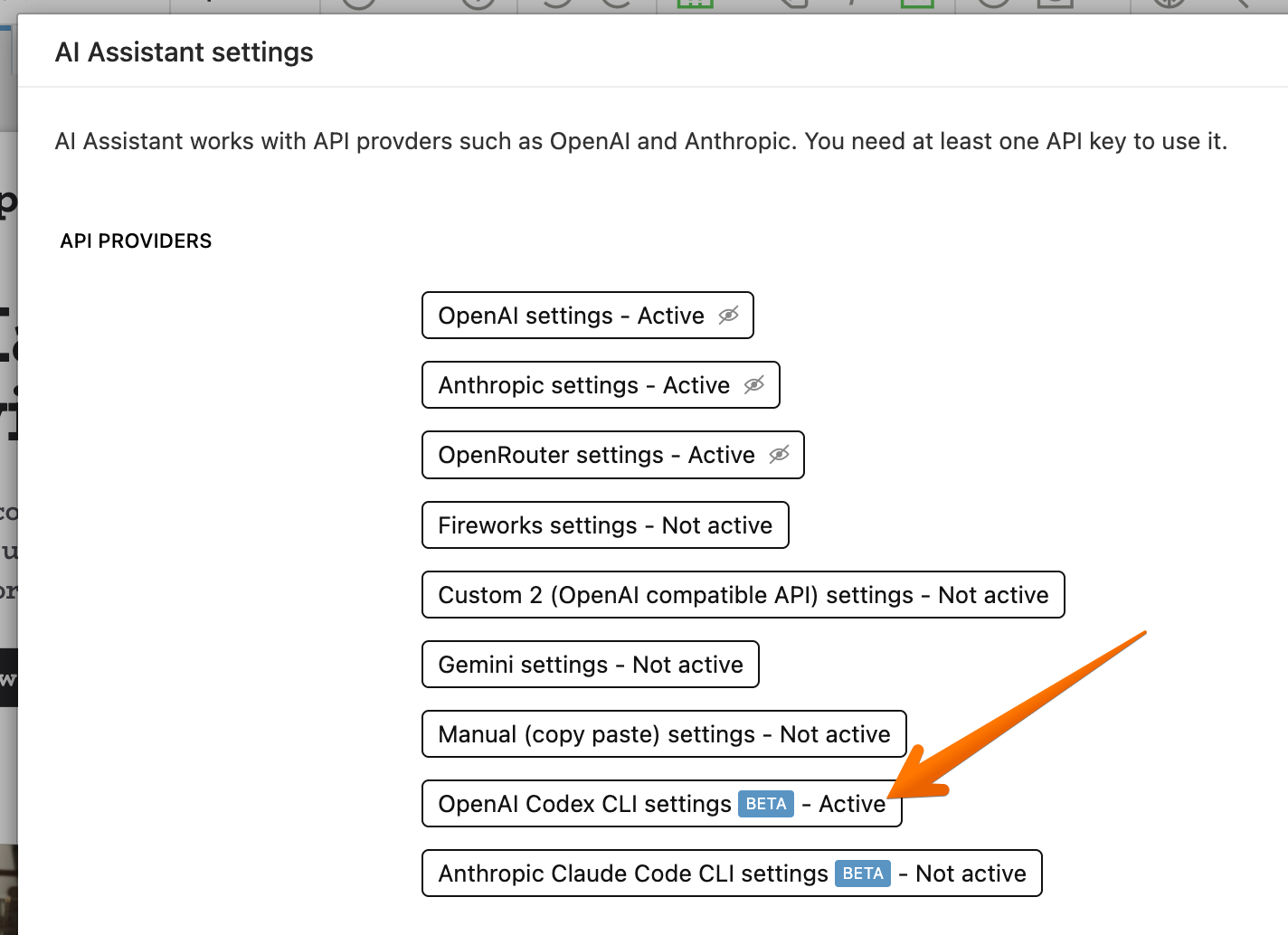
A dialog will open:
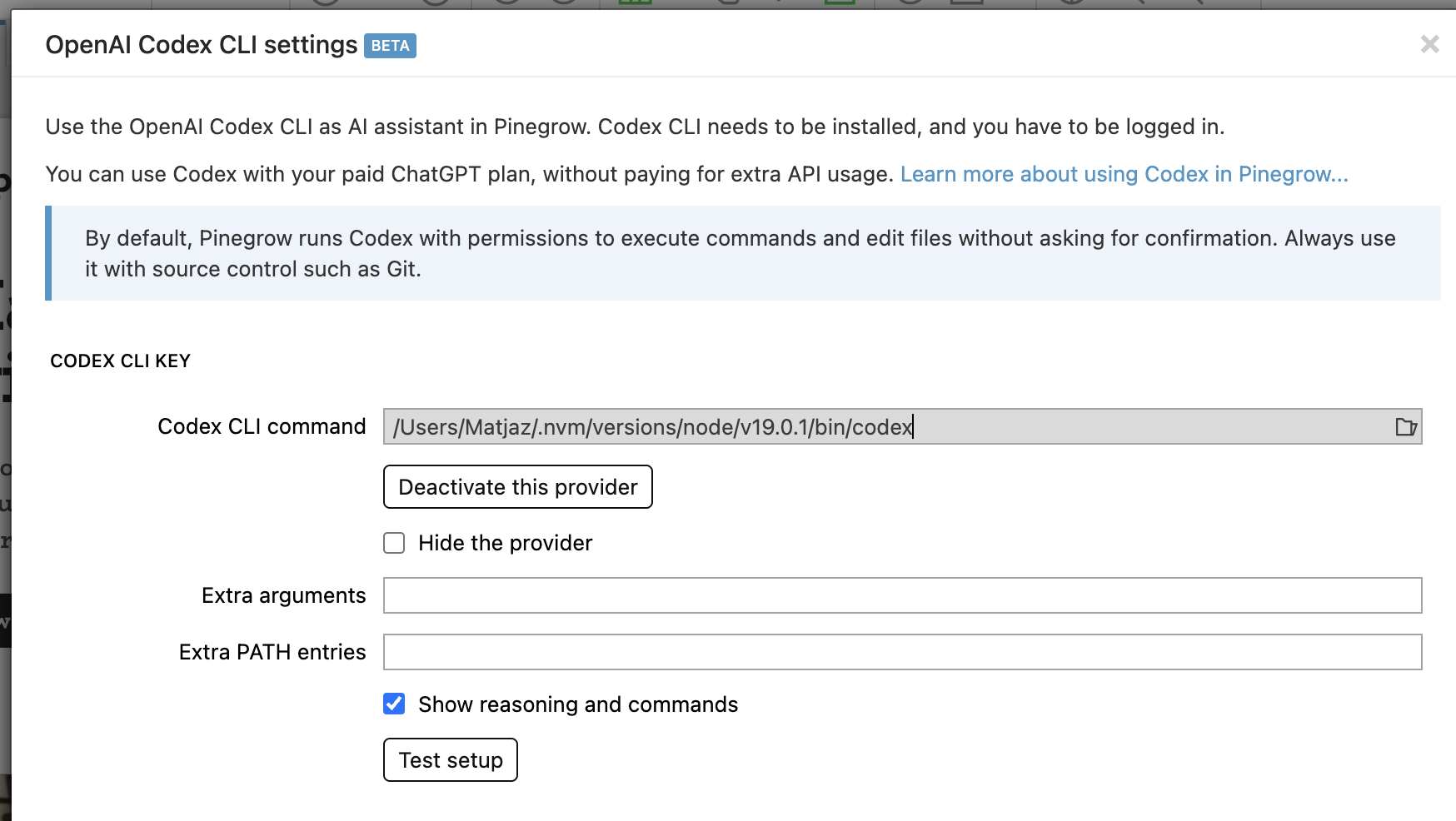
Codex CLI command
Enter the name of the Codex executable under Codex CLI command.
Try entering codex and then click on the Test setup button.
If the command is not found you have to enter the full path to the command. In Terminal, run which codex and use the displayed path.
Passing extra arguments to Codex
Use the Extra arguments field to list any configuration parameters that configure how Codex works.
Use the format -c config_key="value".
For example use -c tools.web_search=true to enable web search. To also enable network access use -c tools.web_search=true -c sandbox_workspace_write.network_access=true.
See the Codex configuration documentation for full reference.
Extra PATH entries
Codex requires Node.js. If Node binaries are not located in the same folder as codex executable, enter the folder in this field. In most cases, this is not required. Only use this field if the Test setup does not succeed despite entering the full command name into the Codex CLI command.
Show reasoning and commands
Keep this option checked to display agent’s thinking in the AI Assistant panel.
Select Codex models
Codex provider adds its models to the model list:
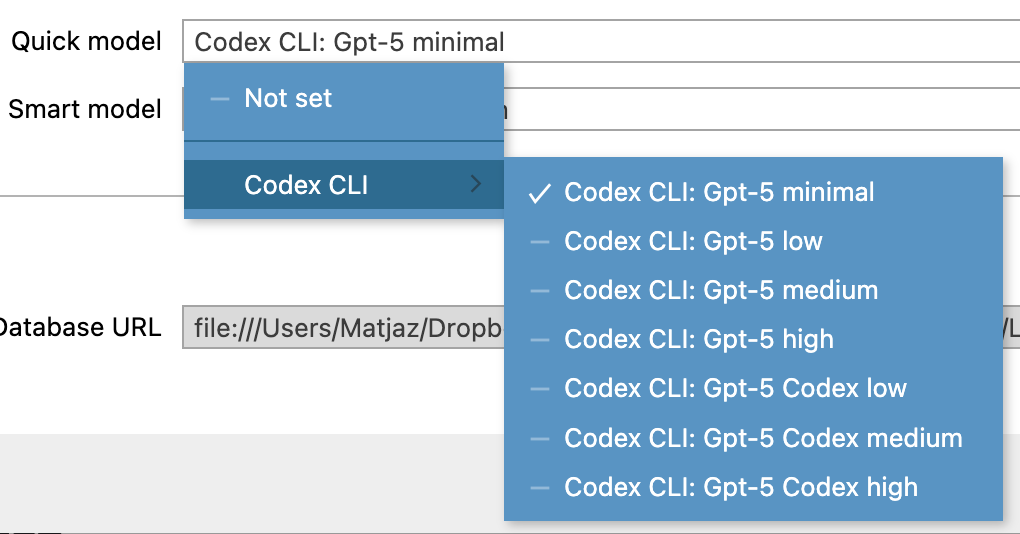
Select minimal or low thinking model as the Quick model and the medium or high thinking model as the Smart model.
Use the Smart / Quick toggle to quickly switch between models:
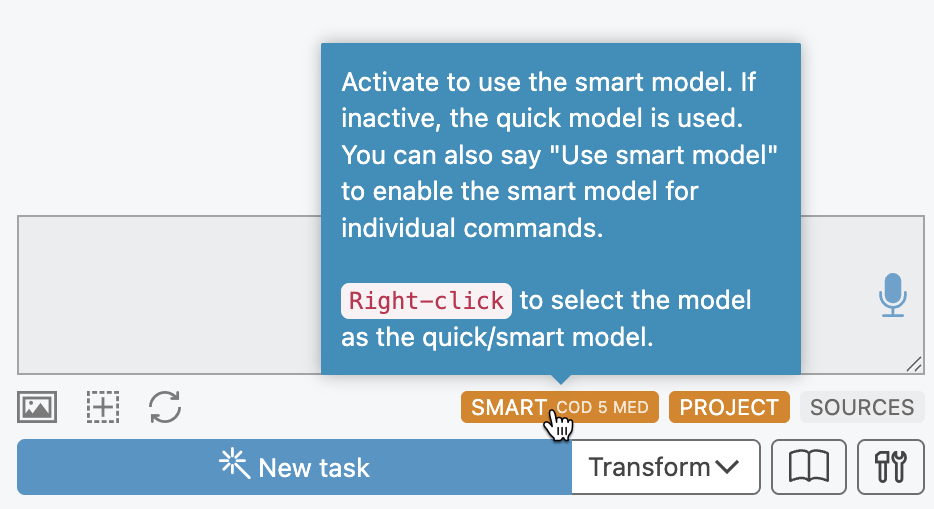
Right-click on the toggle to select a different model as the Smart / Quick model.